


Search for and Find back Traces
 Search for traces based on the Trace field content
To search for messages including a specific text string in the Trace column, use the Search field at the top of the main window:
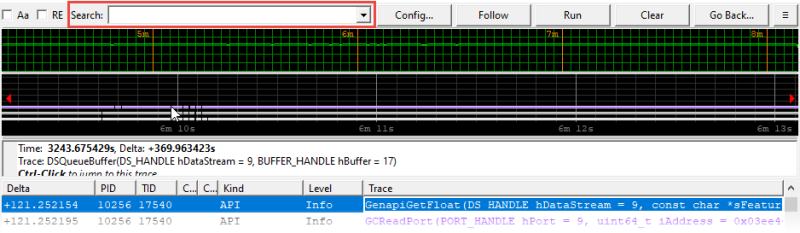
| 1. | Click the Search field or press / on the keyboard to enable the field. |
| 2. | In the Search field, type the requested text string. |
See Advanced queries for more information on the available operators.
| 3. | When applicable, select one of the search options: |
| □ | Aa check box for case-sensitive searches. |
| □ | RE check box for searches based on Perl-like regular expressions. |
| 4. | To search for the entered string: |
| □ | press F3 to search down. |
| □ | press SHIFT + F3 to search up. |
Advanced queries
Using the following operators in the Search field, you can build queries to perform advanced searches on the various columns of the message list:
| ● | Prefix the search query with the \ character. Do not include a space after the backslash. |
| ● | Use one of the following operators with double-quoted strings: =, !=. |
| ● | Use one of the following operators with numerical values: =, !=, >, < , >=, <=. |
| ● | Combine expressions with the logical operators: && or || adding parentheses around the expressions. |
| ● | Reverse an expression by adding ! in front of the expression. |
Examples
| ● | \(delta>5 && trace="flush") && (producer!="recorder") |
| ● | \!(producer="recorder" || producer="eGrabber") |
Search for traces having identical or similar content
By traces having a similar description in the Trace field, we mean traces having the same fixed frame but possibly different values for the optional arguments.
| 1. | In the message list, identify the message having the content (value in Trace, Kind, Level, PID or TID field) you want to search for. |
| 2. | In this message, click the field with the value you want to search for. |
| 3. | Use the following keyboard or keyboard combinations: |
| In order to ... | Proceed as follows: | ||||||
|---|---|---|---|---|---|---|---|
|
Search downwards for traces having the same content |
Press J (or * in the numeric pad). | ||||||
|
Search upwards for traces having the same content |
Press SHIFT + J (or SHIFT + * in the numeric pad). |
||||||
|
Search downwards for traces having a similar content |
Press S (or - in the numeric pad). |
||||||
|
Search upwards for traces having a similar content |
Press SHIFT + S (or SHIFT + - in the numeric pad). | ||||||
|
Copy a trace from the message list to the Search field |
Select the trace in the message list and press Y. |
||||||
|
Repeat the last search you performed in the message list. This does not necessarily correspond to the last search criteria entered in the Search field. |
|
Find back bookmarked traces
When you have assigned bookmarks to traces, you can easily find such traces back in one of the following ways. See Define Bookmarks.
The bookmark names are specified in the Comment column.
| ● | In the message list, right-click and select Bookmarks > Jump to and the bookmark name. |
| ● | In the Search field, type the bookmark name or part of it and press F3. |
Find back a trace from the message list in the plot
To directly find back, in the message plot (or Analyzer plot), a trace you have identified in the message list, proceed as follows:
| 4. | In the message list, right-click and enable the option Auto-Follow plot. |
| 5. | In the message list, click the trace you want to find back in the plot. |
The current position marker (yellow vertical bar) is displayed in the plot area to represent the position of the selected message.
If necessary, the message plot shifts to show the relevant time frame.

Enabling the Auto-Follow option might degrade the performances when many traces are generated. It is therefore recommended to disable the option when you do not need it.
Find back a trace from the plot in the message list
To directly find back, in the message list, a trace you have identified in the message plot (or Analyzer plot), proceed as follows:
| ● | Press CTRL and click on the trace symbol in the plot area. |
In the message list, the Trace field of the corresponding trace is displayed in a black frame:

Copy a tooltip to the clipboard
The Tooltip area displays the information corresponding to the mouse cursor position. It is thus dynamically updated.
| 1. | Position the mouse cursor on the requested trace in the message plot. |
The corresponding tooltip is displayed in the Tooltip area.
| 2. | Press SHIFT to freeze the tooltip message in the Tooltip area. |
| 3. | Drag the mouse cursor to select the tooltip text. |
| 4. | Right-click and select Copy from the context menu. |
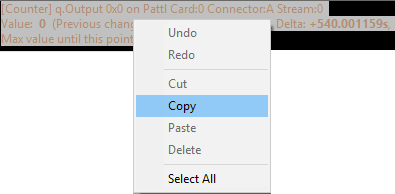
The tooltip text has been added to the clipboard. You can paste it wherever you want.