使用用户界面
Neo License Manager 用户界面
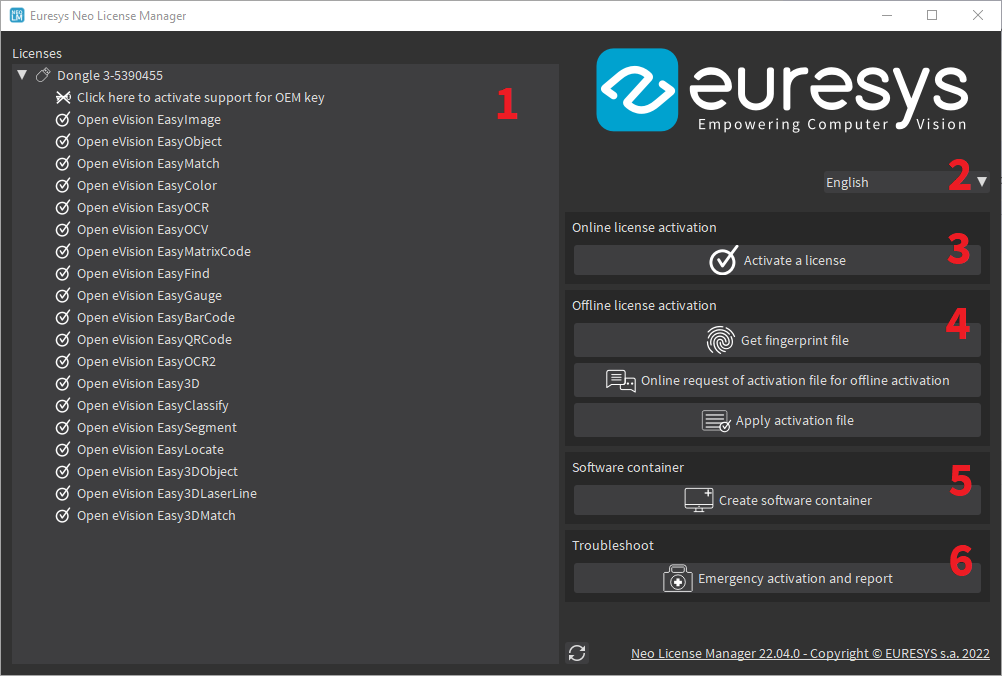
The Neo License Manager is organized in 6 areas:
|
4.
|
The offline Neo License activation. |
|
5.
|
The creation of a software container (this area is hidden after creating a software container). |
激活在线许可证
|
1.
|
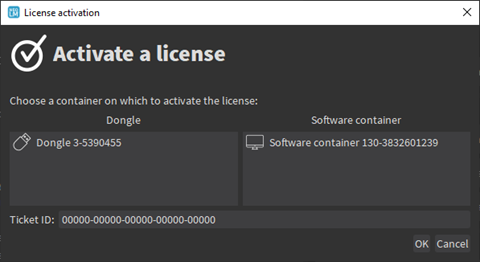
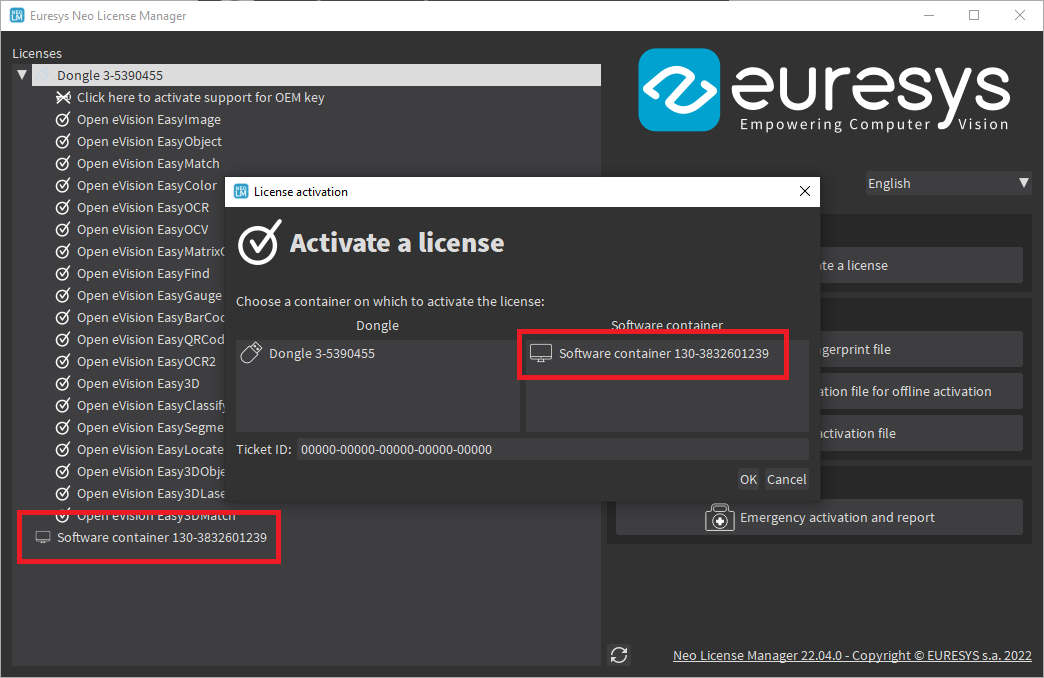
单击 激活许可证 按钮,以打开 许可证激活 对话框。 |
|
□
|
(5组Ticket ID5个字母数字字符,用破折号分隔)。 |
If there is no software license container yet, create one from the main window before opening the license activation dialog.
系统重新安装
如果您必须重新安装系统并丢失许可证:
|
1.
|
使用旧 激活许可证,尝试恢复与第一次激活此 的容器关联的所有许可证Ticket ID。Ticket ID |
这仅在以下情况下有效:
|
2.
|
如果这不能解决问题,或者您丢失了许可证,并且系统发生了重大变化(例如,在硬件组件出现故障并更换之后),您需要请求重新激活: |
|
□
|
请联系支持部门,获取相应 的重新激活授权。Ticket ID |
|
□
|
要求确Neo License Manager认重新激活。 |
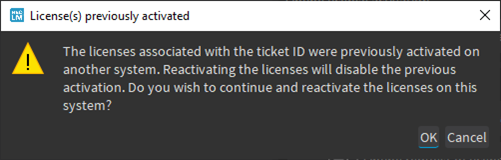
重新激活将禁用另一个系统上以前的激活。
激活脱机许可证
脱机许可激活,允许您激活未连接到互联网的 机器A 上的许可(通过连接到互联网的 机器B )。
脱机许可激活分为3个步骤:
|
a.
|
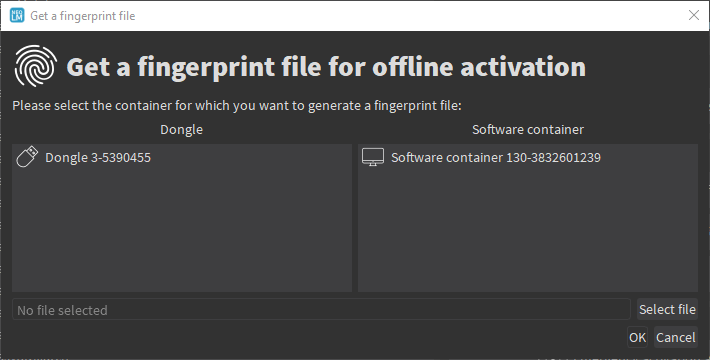
单击 获取指纹文件 按钮,打开 获取指纹文件 对话框。 |
|
a.
|
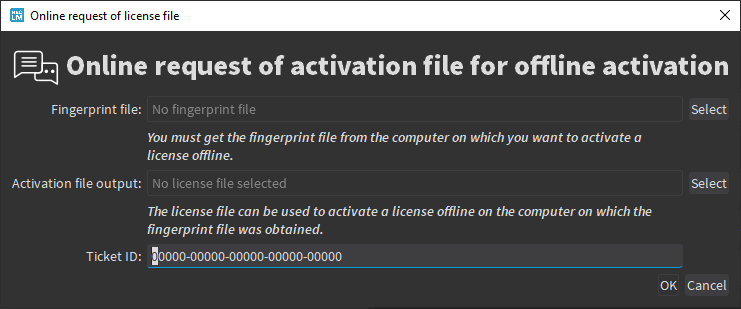
单击 在线申请离线激活许可文件 按钮,申请相应的许可文件。 |
|
□
|
(5组Ticket ID5个字母数字字符,用破折号分隔)。 |
Creating a software container
To activate a license on a software container:
|
1.
|
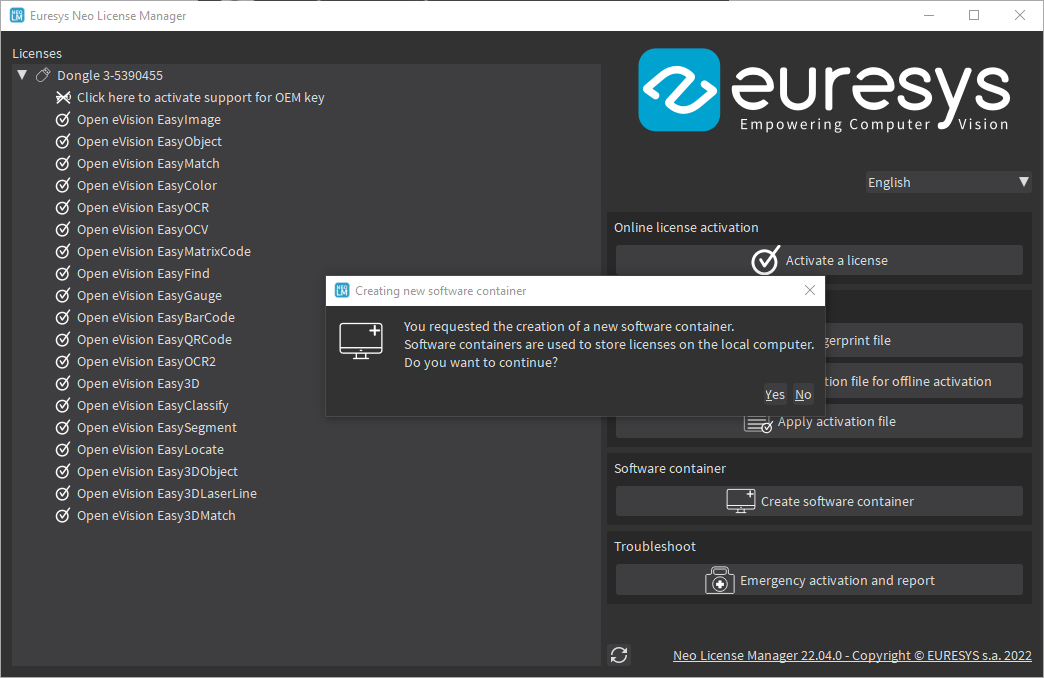
Click on the Create software container button (area 5 in the main window) to create a new software container. |
|
2.
|
Click on the Yes button to confirm the creation of the software container. |
|
3.
|
The software container is now available in the license activation dialogs and in the main license list (area 1 in the main window). |
Preparing a dongle to use the OEM key functionality
|
●
|
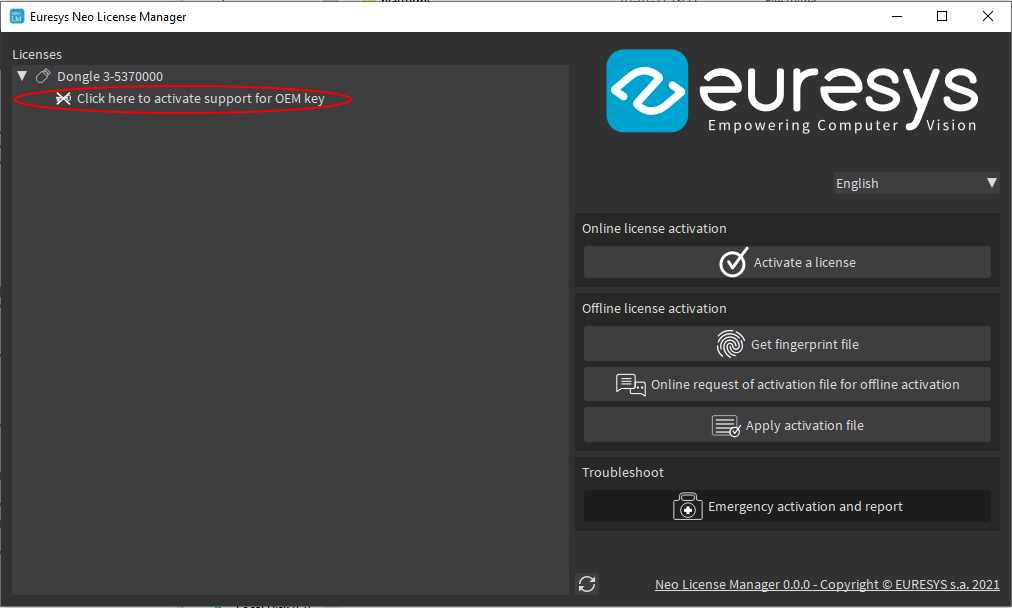
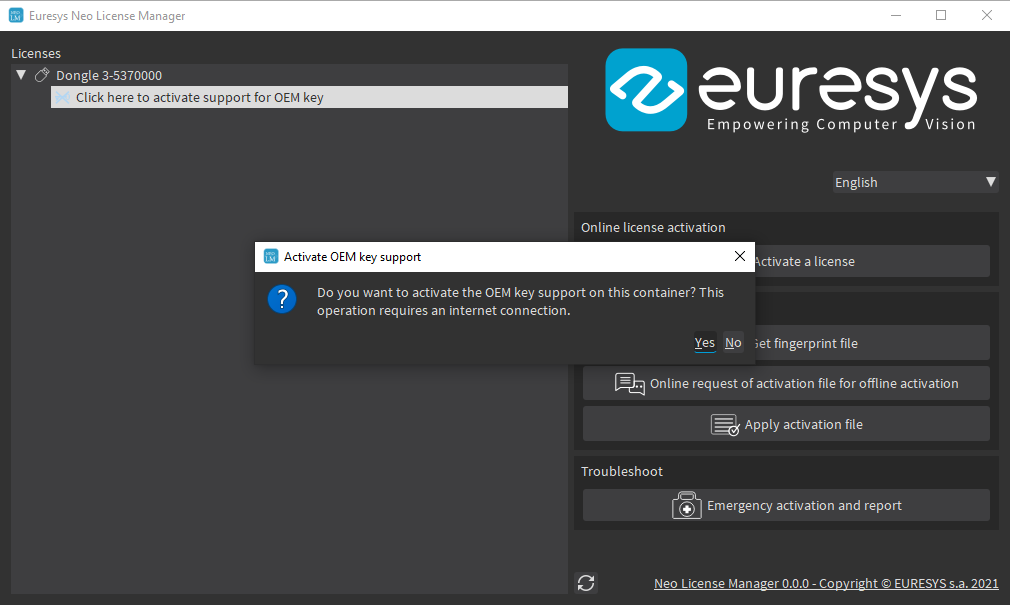
When a preparation is required, a warning text appears in the list of the dongle licenses. |
|
●
|
Click on that text and follow the instructions. |
故障排除
|
1.
|
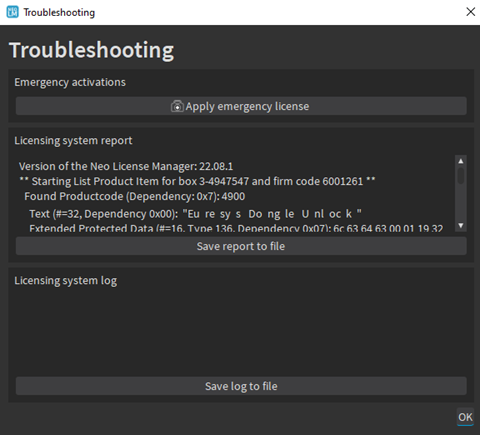
单击 紧急激活和报告 按钮打开 故障诊断 对话框。 |
|
□
|
出于安全原因,您不能在虚拟机上激活紧急许可证。 |
|
3.
|
单击 将报告保存到文件 按钮生成许可系统报告并将其保存到文件中。 |
|
4.
|
Click on the Save log to file button to generate a licensing system log and save it to a file. |
|
□
|
The support team may require this log when you have a licensing issue. |