using Code Snippets : Creating Code Snippets
A flexible mask can be generated by any application that outputs BW8 images or uses the Open eVision image processing functions.
EasyObject can use flexible masks to restrict blob analysis to complex or disconnected shaped regions of the image.
If an object of interest has the same gray level as other regions of the image, you can define "keep" and "ignore" areas using flexible masks and Encode functions.
A flexible mask is a BW8 image with the same height and width as the source image.
- A pixel value of 0 in the flexible mask masks the corresponding source image pixel so it doesn't appear in the encoded image.
- Any other pixel value in the flexible mask causes the pixel to be encoded.
 EasyObject functions that create flexible masks
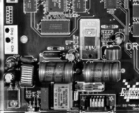
Source image
1) ECodedImage2::RenderMask: from a layer of an encoded image
- To encode and extract a flexible mask, first construct a coded image from the source image.
- Choose a segmentation method (for the image above the default method GrayscaleSingleThreshold is suitable).
- Select the layer(s) of the coded image that should be encoded (i.e. white and black layers using minimum residue thresholding).
- Make the mask image the desired size using mask.SetSize(sourceImage.GetWidth(), sourceImage.GetHeight()).
- Exploit the flexible mask as an argument to ECodedImage2::RenderMask.
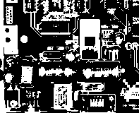
BW8 resulting image that can be used as a flexible mask
2) ECodedElement::RenderMask: from a blob or hole
- Select the coded elements of interest.
- Create a loop extracting a mask from selected coded elements of the coded image using ECodedElement::RenderMask.
- Optionally, compute the feature value over each of these selected coded elements.
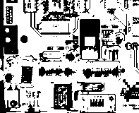
BW8 resulting image that can be used as a flexible mask
3) EObjectSelection::RenderMask: from a selection of blobs
EObjectSelection::RenderMask can, for example, discard small objects resulting from noise.
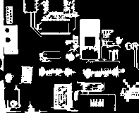
BW8 resulting image that can be used as a flexible mask
Example: Restrict the areas encoded by EasyObject
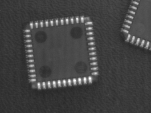
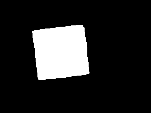
Find four circles (left) Flexible mask can isolate the central chip (right)
- Declare a new ECodedImage2 object.
- Setup variables: first declare source image and flexible mask, then load them.
- Declare an EImageEncoder object and, if applicable, select the appropriate segmenter. Setup the segmenter and choose the appropriate layer(s) to encode.
- Encode the source image. Encoding a layer with just the area in the flexible mask is then pretty straightforward.
We see that the circles are correctly segmented in the black layer with the grayscale single threshold segmenter: - Select all objects of the coded image.
- Select objects of interest by filtering out objects that are too small.
- Display the blob feature by iterating over the selected objects to display the chosen feature.