Basics
In certain situations, a camera field of view is insufficient to capture the entire subject. To address this limitation, the camera is repositioned (frequently in a grid pattern) to acquire multiple, overlapping images. These images are then combined using a process known as image stitching, resulting in a final image that appears to have been captured in a single shot.
| ● | Here is an example used below: |
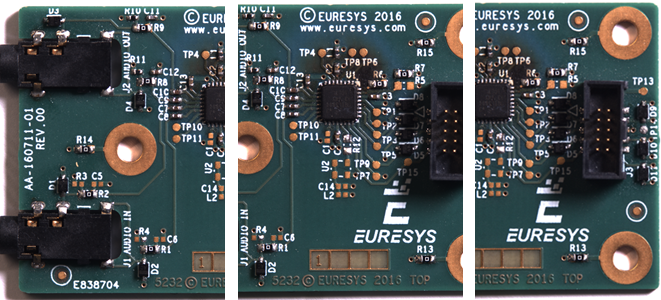
| ● | Use the class EImageStitcher to perform the stitching: |
| □ | Use your already loaded and properly calibrated patches as inputs in an arbitrary order. |
| □ | The patches do not need to be aligned (they can be arbitrarily rotated). |
| □ | All input images must have the same resolution. |
List<EImageC24> patchs = new List<EImageC24>(); // should be already loaded
EImageStitcher stitcher = new EImageStitcher();

EImageC24 output = new EImageC24(); // no need to be sized beforehand
stitcher.Stitch(patchs.ToArray(), output);
You can also use this code with images EImageBW8.
| ● | The final image is: |
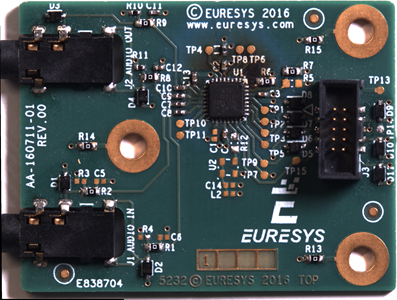
Reference image
| ● | If your set of patches contains images with significantly different rotations, you can specify a reference image. |
Example of a subset of arbitrarily rotated images:

| ● | By default, the result image may appear unaligned as the EImageStitcher has no reference. |

| ● | To avoid this, specify the given patch to be used as the reference image. |
| □ | The reference image is stitched onto the final image with no rotation, scale or skew. |
With the car picture set, the reference image is set as 1. In our example, that is:

| ● | The corresponding code is: |
List<EImageC24> patchs = new List<EImageC24>(); // should be already loaded
EImageStitcher stitcher = new EImageStitcher();

EImageC24 output = new EImageC24(); // no need to be sized beforehand
stitcher.StitchWithReferenceImage(patchs.ToArray(), output, 1); // the last argument specifies the reference image index

Parameters
Due to the strict constraints applied during the stitching process (to ensure the validity of the possible measurements applied afterward), the class EImageStitcher can fail to stitch certain sets of patches.
Image resolution
The resolution of the input images heavily influences the time required by the stitching operation as this time does not increase linearly, but rather exponentially.
| □ | If your use-case allows it, use input patches with a low resolution (for example, preprocessed with EasyImage.Resize). |
| □ | You can also use the parameter FeatureScalingEnabled described below. |
FeatureScalingEnabled
With EImageStitcher, the costliest operation is finding the feature points and an efficient way of cutting the time spent on this operation is to simply run the internal filter on a lower-resolution image.
In our internal tests, the majority of the stitching that works with FeatureScalingEnabled sets to true also works with FeatureScalingEnabled sets to false, while the opposite is not always true. Especially when the feature points used as a base for the stitching are already very small (down-sizing the input images would render them invisible).
Therefore, the parameter FeatureScalingEnabled can help you achieve a better performance without sacrificing resolution:
| □ | Use FeatureScalingEnabled to scale down the input image and speed up the finding of its feature points. |
| □ | This does not affect the resolution of the output image as only the underlying computation is performed at a lower resolution. |
| □ | This parameter may influence the overall precision of the stitching. |
Grid parameters
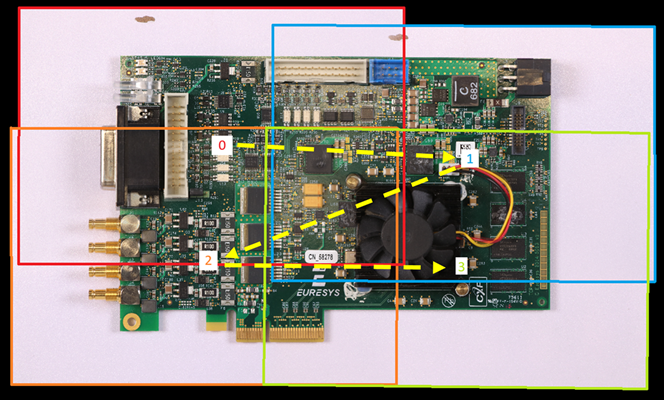
In most industrial cases, the position of the camera when the image is captured is approximately known. It's especially true when multiple cameras are positioned in a grid (or when a single camera is repositioned in a grid).
If the patches are submitted to the stitching method row by row, the stitching method can leverage that information and produce better and faster results.
Specifying a grid increases the constraints applied when computing the affine matrix. The stitching method assumes that there are about no differences in the rotation and the scaling between patches.
List<EImageC24> patchs = new List<EImageC24> {
  image_0, image_1,
  image_2, image_3, // images are ordered row by row
};
EImageStitcher stitcher = new EImageStitcher();

EImageC24 output = new EImageC24(); // no need to be sized beforehand
stitcher.Stitch(patchs.ToArray(), output, 2, 2); // as the grid is 2x2, colCount is 2 and rowCount is 2
GridOverlap
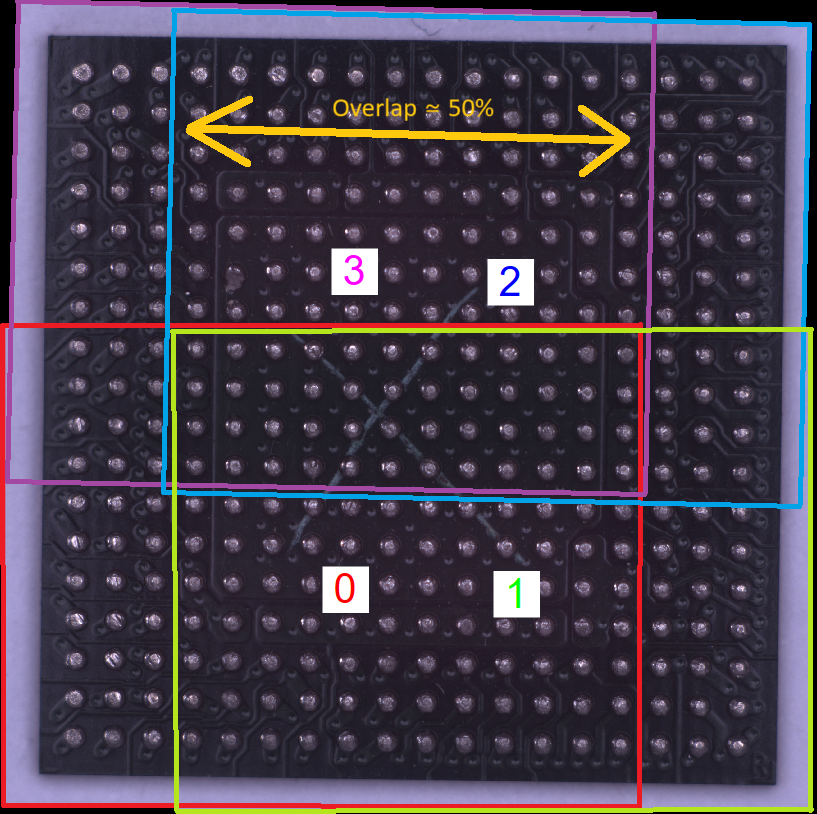
The parameters GridOverlapX and GridOverlapY define the relative amount of surface that two adjacent patches share.
The best overlap depends on your image and your application. The chosen overlap can impact the precision. Moreover, it can also depend on the image resolution. For example, a 10% overlap for 256×256 images means finding feature points only in a band of 25 pixels and that is not much.
| □ | The best stitching results are obtained when these parameters have exact values. |
Incremental mode
The class EImageStitcher offers an "incremental stitching" mode, designed to significantly speed up the stitching process.
| □ | This mode takes advantage of the fact that the physical camera takes a significant time to move between two points of view. |
| □ | The speedup happens as the EImageStitcher overlaps the image capture and the stitching operations. |
| □ | Doing so can reduce the overall time required to stitch your images. |
To use incremental stitching:
| 1. | Initialize the stitching process: |
| □ | Use StartIncrementalStitching to set up the incremental stitching mode. |
| 2. | Capture and process an image: |
| □ | Capture an image. |
| □ | Use ProcessImage with this image (this call is blocking and takes a significant time). |
| 3. | Repeat the capture and process step. |
| 4. | Once all images are captured and processed, finalize the stitching: |
| □ | Use FinalizeIncrementalStitching to complete the stitching process. |
Learning to stitch on a pattern with strong feature points to maximize the precision and then apply the stitching on images in production is a valid usage.
| 2 | See the new Open eVision Studio example where the EImageStitcher is applied on a piece of tissue (with a low number of reliable feature points) after being learned on a pattern (with a high number of reliable feature points). |
By using the incremental stitching, you can expect results identical to the traditional stitching method. However, you need to manage the multithreading externally in your application.
Stitching with learning
When the images to stitch do not have enough features (such as a very smooth surface, a piece of fabric...), it is possible to learn the transformations to apply on the input images from another set of images. Moreover, you can use the learning to make subsequent learnings faster.
Make sure that the point of view for each image is strictly identical for the images given to the learn method and for the images given to the subsequent stitching calls.
| 1. | Capture images of an easy-to-stitch subject. |
| □ | In new Open eVision Studio, the sample program Image stitching with learning uses a flat sheet of paper containing primitive shapes. |


| 2. | Use the method LearnBW8 or LearnC24 on these images. |
| 3. | Once the learn is complete with your set of parameters, call EImageStitcher.Stitch with your hard-to-stitch images. |
| □ | In new Open eVision Studio, the sample uses a piece of fabric (the same fabric as in the EasySegment sample). |


Stitching with a region
In some cases, unwarping an image (for example using EWorldShape) leaves significant black regions.
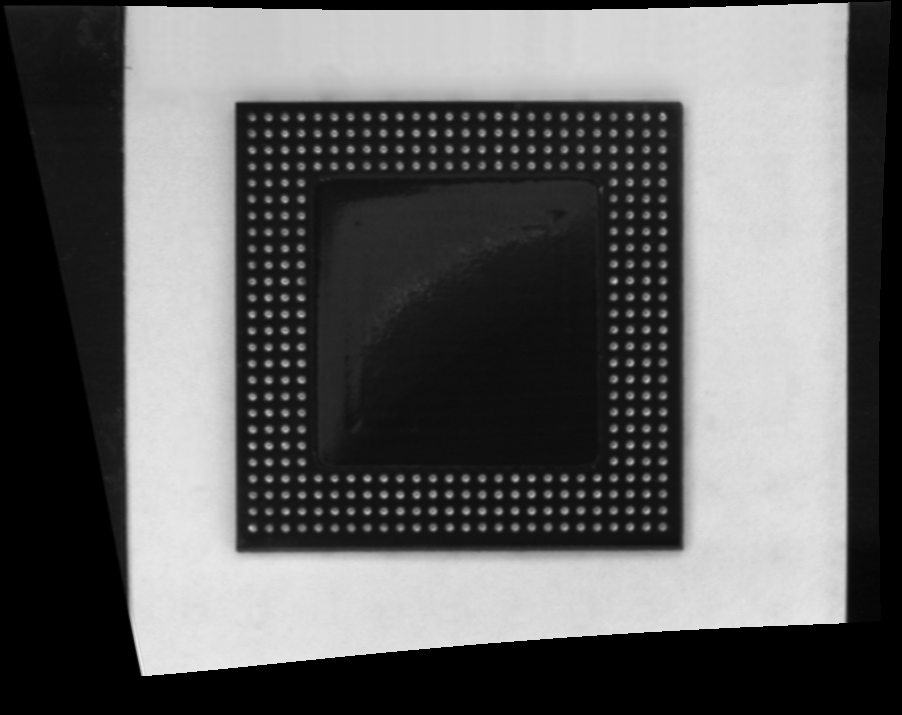
These regions should not influence the stitching as they contain no actual data (all these black pixels are not present in the original image).
| ● | As of 25.10, EWorldShape.Unwarp can now output a ERegion that allows you to know if a pixel is a black pixel with no data (outside the region) or a pixel that is present in the original image. |
| ● | You can use these regions in the EImageStitcher. |
Debugging
To better guide the debugging process, use the following methods to generate visualizations after a stitching operation (successful or not):
| ● | Use DrawPoints to draw, for a given image, the set of feature points used to stitch it. |
| ● | Use DrawTransformation to draw, for each stitched image, a transformed quadrangle (a quadrangle multiplied by the affine matrix used to stitch the image). |
Multithreading
The stitching method can greatly benefits from multithreading.
If your use-case allows it, enable it using :
Easy.MaxNumberOfProcessingThreads = int numberOfThreads;