


Working with Encrypted Files
Every time the recording process starts (at boot time or manually), a new 'run' identifier is defined, based on the contents of the USB media plugged in.
The current AES passphrase is copied in a separate folder of the USB media and encrypted in a GPG file with the OpenPGP keys installed.
 Retrieve the passphrase files
Retrieve the GPG files to decrypt in one of the following ways:
| ● | Click and download the files from the web interface, on the Storage page, in the Encrypted Passphrases list. |
| ● | Open a File Explorer and go to the passphrases folder on the USB drive plugged into your computer |
You can now decrypt the passphrase files using Gpg4Win or GPG command line tools.
Decrypt the passphrase file using Gpg4Win
| 1. | Select one or more GPG files. |
| 2. | Right-click on one of them and select Decrypt and verify in the menu. |
Kleopatra opens and prompts you for the passphrase you used to protect your private key.
| 3. | Enter the passphrase. |
Kleopatra decrypts the files in the background.
| 4. | In the Decrypt/Verify Files dialog box, select the Output folder for the decrypted files. |
| 5. | Click Save all. |
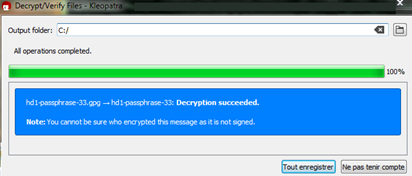
In the specified output folder, a new file having the same name as the original GPG file is created and contains the decrypted passphrase.
When you will decrypt the corresponding MP4 file, you will copy this AES passphrase using a standard text editor.
Decrypt the passphrase file using the GPG command line tools
| 6. | Type the command gpg --decrypt HD1_PASSPHRASE_NN.GPG from the folder where the passphrase files are stored. |
| 7. | Enter the private key passphrase you used to protect your private key. |
The console displays the decrypted AES passphrase.
Retrieve the MP4 files
Retrieve the MP4 files to decrypt in one of the following ways:
| ● | from the Stored Media list on the Storage page |
| ● | from the Media Preview page |
| ● | from the USB drive after plugging it in your computer |
You can now decrypt the MP4 files.
Decrypt the MP4 files using Euresys decryptor sample program
| 8. | Go to the folder containing your encrypted MP4 file. |
| 9. | Next to your MP4 files, copy the executable decryptor.exe you find in the sample programs on the Euresys download area for picolo.net HD1. |
| 10. | Open a command line window. |
| 11. | Open the relevant decrypted passphrase file and copy the passphrase. |
| 12. | Run the command decryptor.exe PASSPHRASE FILENAME > OUTPUT_FILE, where: |
| □ | PASSPHRASE is the decrypted AES passphrase you have copied from the decrypted passphrase-%.gpg file. |
| □ | FILENAME is the encrypted MP4 file. |
| □ | OUTPUT_FILE is the name of the MP4 file to be generated with the decrypted video content from the encrypted MP4 file. |
Decrypt the MP4 files using ecryptfs on a Linux computer
Assuming that the unencrypted file is in DIR:
| 13. | Run the command sudo mount -t ecryptfs DIR DIR -o |
| 14. | Run the command ecryptfs_unlink_sigs,ecryptfs_passthrough,ecryptfs_key_bytes=16,ecryptfs_cipher=aes,ecryptfs_enable_filename_crypto=n,no_sig_cache |
| 15. | Enter the relevant decrypted passphrase. |
You have access to the files in their decrypted form in DIR without creating decrypted copies on the underlying media.
See https://wiki.archlinux.org/index.php/ECryptfs for alternate usages, including performing actions without root privilege.