Detecting the Corners of an Object Using Harris Corner Detector
Objective
You'll need to load a source image (step 1), and simply apply the Harris corner detection (step 2).
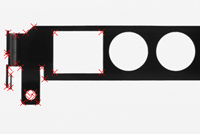
Corners are detected in the source image
Step 1: Load the source image
| 1. | From the main menu, click EasyImage, then Harris Corner Detector. |
| 2. | Keep the default variable name, and click OK. |
| 3. | Click the Open icon of the Source Image area, and load the image file EasyGauge\Bracket1.tif. |
| 4. | Keep the default variable name, and click OK. |
Step 2: Apply the Harris corner detection
| 1. | In the Harris corner detector dialog box, enter 2.3 for the Scale property. |
| 2. | Click Apply to perform corners detection. |
| 3. | Click Results to display the coordinates of all detected corners. |
| 4. | The Columns button allows you to display additional properties in the results list. |