
EChecker requires two processing steps, Training and Inspection. These two operations are totally independent and can be programmed in separate applications.
Training involves pre-processing the set of reference images to compute the acceptance ranges at each pixel and to store them in two threshold images for use with EasyObject. You can test that the Golden Template is good and tune the learning process parameters if necessary. The training can be done once for all and the results archived in a Golden template file for later use.
Inspection involves processing an image, realigning and normalizing, detecting pixels that fall out of the acceptance intervals, checking the quality,and then tuning the inspection parameters if necessary.
The following sections present the relevant API functions for use in the training and inspection steps.
 Training
Reference images are preprocessed to compute the pixel acceptance ranges, and store them in two threshold images for use with EasyObject (legacy). The training results are archived in a model file for later use.
Two modes of operation are provided, depending on whether reference images are stored on disk or are acquired and processed on the fly.
These operations cannot be used during on-line operation.
To define a model, several operations are performed, in this order:
- On the first reference image, one or two ROIs are placed to define the location patterns (fiducial marks or landmarks).
These ROIs are surrounded by two others to define the possible movement freedom, and are used as search areas for pattern matching. ROIs can be placed interactively using dragging handles.
EChecker manages the dragging operations.
- Draw graphically renders the ROIs and handles.
- HitTest detects the presence of the cursor over one of the handles.
- Drag moves a handle.
These functions operate on all three ROIs (pattern, search and inspected). You will quickly notice that:
- Dragging a pattern ROI causes the corresponding search ROI to adjust automatically so tolerances remain constant.
- Dragging a search ROI causes its size to adjust symmetrically with respect to the pattern.
- Adjusting a search area also sets the inspected ROI to the largest available space in the image.
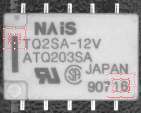
Pattern ROIs and search ROIs
- If the training images are on disk, the list of file names can be registered and used later to execute learning in a single command (batch learning, as opposed to on-the-fly learning).
- Another ROI is defined to delimit the area to be inspected. This area must only include pixels of the rigid part (that moves with the fiducial marks), and not the background.
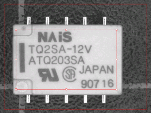
Inspected ROI
- All images are processed and are averaged using Statistical training. It uses realignment to deal with displacement of the inspected part in the field of view, and gray-level normalization to deal with global illumination changes.
- Ideally at least 16 images should be used in learning passes to create the low and high threshold images. The user can strengthen or loosen the acceptance intervals using a global tolerance parameter. Call Learn(ELearningMode_Ready). Property RelativeTolerance adjusts the acceptance ranges.
- The model can be saved to a single file including all relevant information, i.e. placement of the various ROIs, fiducial pattern images, gray-level normalization parameters and the threshold images.
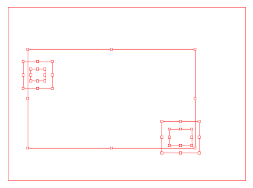
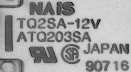
Components of an EChecker model
Check the reference images for reliability.
After the alignment ROIs have been set, they should be checked for reliability of fiducial location. The best way is to load the training images, display them and locate the patterns in them, by means of member function Register. If location fails, different corrective actions can be taken, depending on the problem:
- The choice of pattern is poor. Define other ROIs with more stable contents.
- The search areas are too tight, so that occurrences of the pattern are found along edges. Enlarge the search area.
- The image is insufficiently representative (it has defects). It is better to withdraw it from the learning set.
Note: The first call to member Register invokes the Learn members of the alignment EasyMatch contexts, i.e. training on the patterns is achieved. Unless member Learn(ELearningMode_Reset) is called, these patterns will be used for all subsequent alignment operations. The first image to be used serves both as a reference for defining the alignment pattern and contrast measurement. It is called the mother image.
If the learning images are saved on disk: Every time a file is successfully loaded and is accepted as a reference image, the EChecker object can add the file path name to a list. Later, all files can be processed in a single command.
More learning
After the ROI placement and pattern learning have been performed (Register operations), training still requires two passes:
- The "average" pass is needed to compute an ideal, noise-free, image that reveals the central tendency of the part image.
For each image, realign and normalize (Register). If the operation is successful (good pattern location), call Learn(ELearningMode_Average) for immediate processing (on-the-fly learning), or
AddPathName for deferred processing (batch learning). - The "deviation" pass measures variations around the average image.
For each image, realign and normalize (Register). If the operation was successful, call
Learn(ELearningMode_RmsDeviation) (enhances the large deviations), or
Learn(ELearningMode_AbsDeviation) for immediate processing (more robust and is recommended in most circumstances).
In principle, the images shown during those two passes should be the same.
If you do not want to archive them, two distinct sets of images can be used (on-the-fly learning). These sets need not even be of the same size.
A learning set size of at least 16 images is recommended.
Alternatively, calling BatchLearn will perform the two required passes for all images added to the file list.
Adjust thresholding
Learn(ELearningMode_Ready). Property RelativeTolerance can be adjusted to adjust the acceptance ranges.
Inspection
Inspection is straightforward: the sample image is realigned with the model file and gray-level normalized.
Note: The inspected ROI must be positioned on the mother image. It can be interactively positioned in the same way the pattern and search areas are. This ROI can be set at the same time as the others. Changing the search tolerance will reset the inspected ROI to the largest available area.
EChecker can tune the global RelativeTolerance property at inspection time, thus changing lower and upper threshold images used by EasyObject (legacy).
This is the only EChecker parameter that can be changed after learning.
|
|
|
|
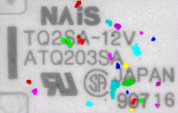
| Inspected image, ... | ... high and low threshold images, ... | ... and detected blobs. | |
The resulting image is passed to an ECodedImage object for blob analysis; which groups neighboring pixels to form blobs, discards the smaller blobs (usually noise), measures geometric characteristics (location, size, orientation, ...) and others, see EasyObject.
This image is then compared to the lower and upper reference images (a comparison is made pixel by pixel between the sample and the template to detect pixels that fall out of acceptance intervals). Defective pixels are handled by standard EasyObject functions.
Compare using EChecker
EChecker finds visible differences between templates and samples, and reports them in a defect map which highlights significant differences. EasyObject blob analysis tools can then locate the defects and qualify them in terms of extent, orientation, lightness and so on. It is ideally suited when inspected items are rigid (shape does not vary) and illumination is uniform, ensuring repeatable visual appearance of the image, so that point to point image comparison makes sense.
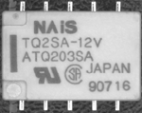
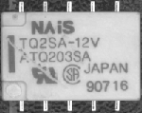
Reference image vs. sample image with defects
Statistical training
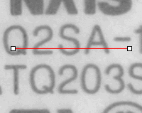
Grabbing several reference images optimizes assessment of normal gray-level variations and acceptance intervals:
- consecutive images of the same part without any change (static test) gives a gray-level distribution that corresponds to noise distribution.
- consecutive images of different defect-free parts reveals variations due to the parts.
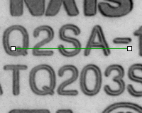
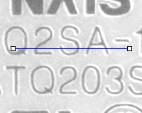
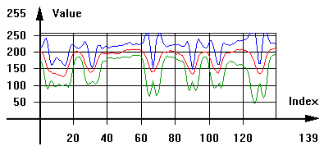
Accepted gray-level ranges